Campaigns · Reference
TV campaign scheduling: weekdays, overnight windows, and time zones
Configure the campaign Schedule tab using the actual playback rules. Weekday selection, per-day windows, and date boundaries are separate constraints; an Active badge is not proof of playback at this instant.
What this does
Configure the campaign Schedule tab using the actual playback rules. Weekday selection, per-day windows, and date boundaries are separate constraints; an Active badge is not proof of playback at this instant.
Before you start
- Choose the intended group or location and a campaign you are authorized to edit.
- Check the clock and time zone used when the campaign was created. This editor does not expose a time-zone selector.
Steps
- Open the TV campaign and its Schedule tab.
- Leave all restrictions empty for continuous playback, or choose the allowed weekdays.
- Add complete daily windows, or expand Advanced: per-day windows for different hours on each day.
- For overnight service, split the hours onto their actual calendar days as described below.
- Save Changes (or Create Campaign), then verify delivery on the intended Player at both sides of the boundary.
Current screenshot
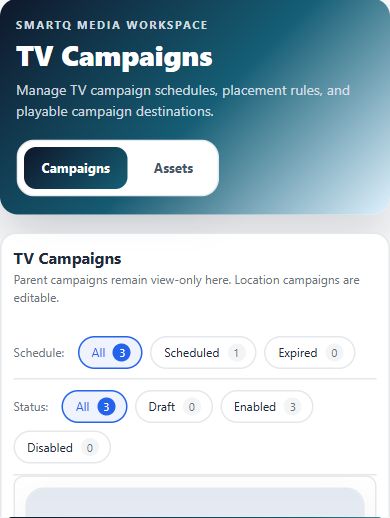
Why Scheduled does not include every active campaign
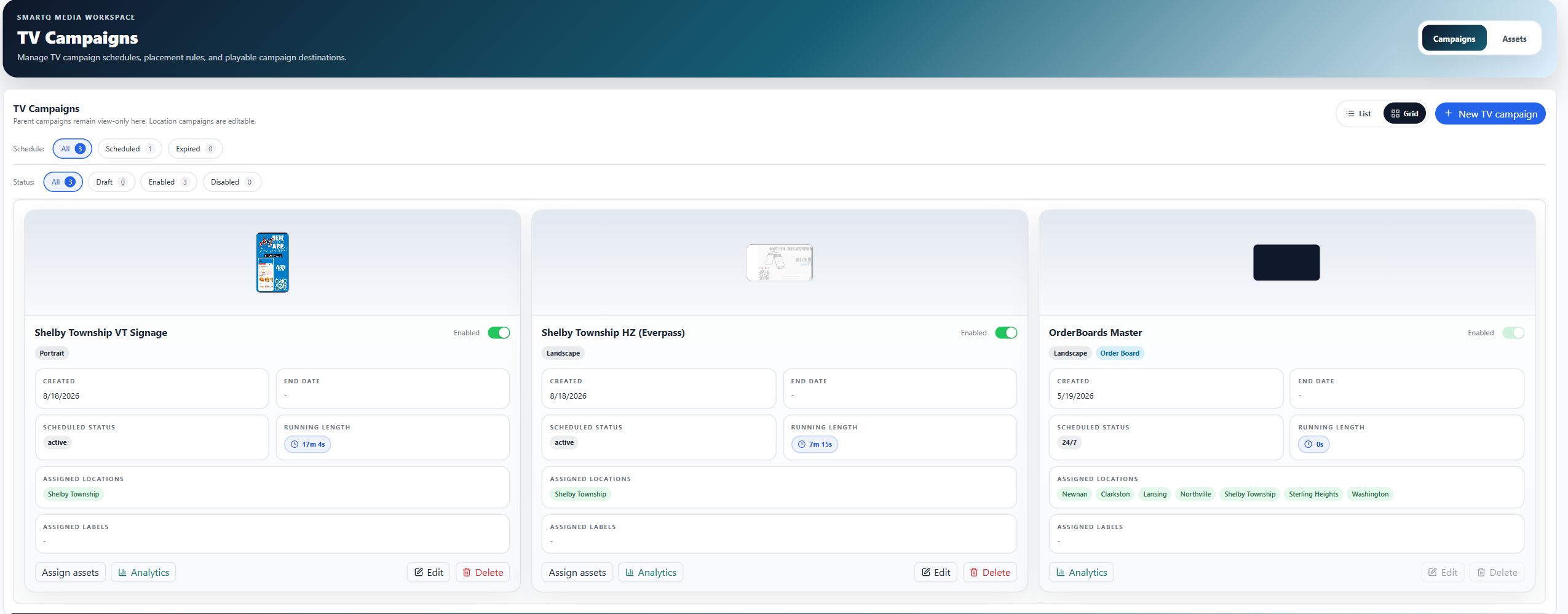
The campaign list has separate Schedule and Status filters, both initially All. Scheduled includes badge values scheduled, 24/7, and legacy 247, but excludes active. Expired includes only expired. Thus a campaign can be Enabled and active while absent from Scheduled. Each Schedule count is calculated after the selected Status filter, and each Status count after the Schedule filter; filters intersect rather than add results. Return both rows to All when looking for a missing campaign. These filters only change the displayed list, not campaign delivery.
Draft, Enabled, and Disabled list buckets
Status filters classify draft as Draft, enabled or published as Enabled, and disabled as Disabled. If those status strings do not match, the list checks isDraft, then the enabled boolean, and otherwise falls back to Disabled. This compatibility classification is distinct from scheduling eligibility and does not mean all legacy values are available in the editor. A filter button only narrows the list; the separate Enable/Disable switch is a production action and should not be used to troubleshoot a display filter.
Continuous playback and Enabled
Leave start/end, days, daily windows, and per-day windows empty for continuous playback. Saving sets is247 only when all those restrictions are absent. Enabled is independent: Disabled prevents playback even with a 24/7 schedule. The scheduler treats disabled, draft, archived, deleted, inactive, and expired records as disabled; these internal record values are not a promise that the TV editor offers all those status choices.
Start and End (date & time)
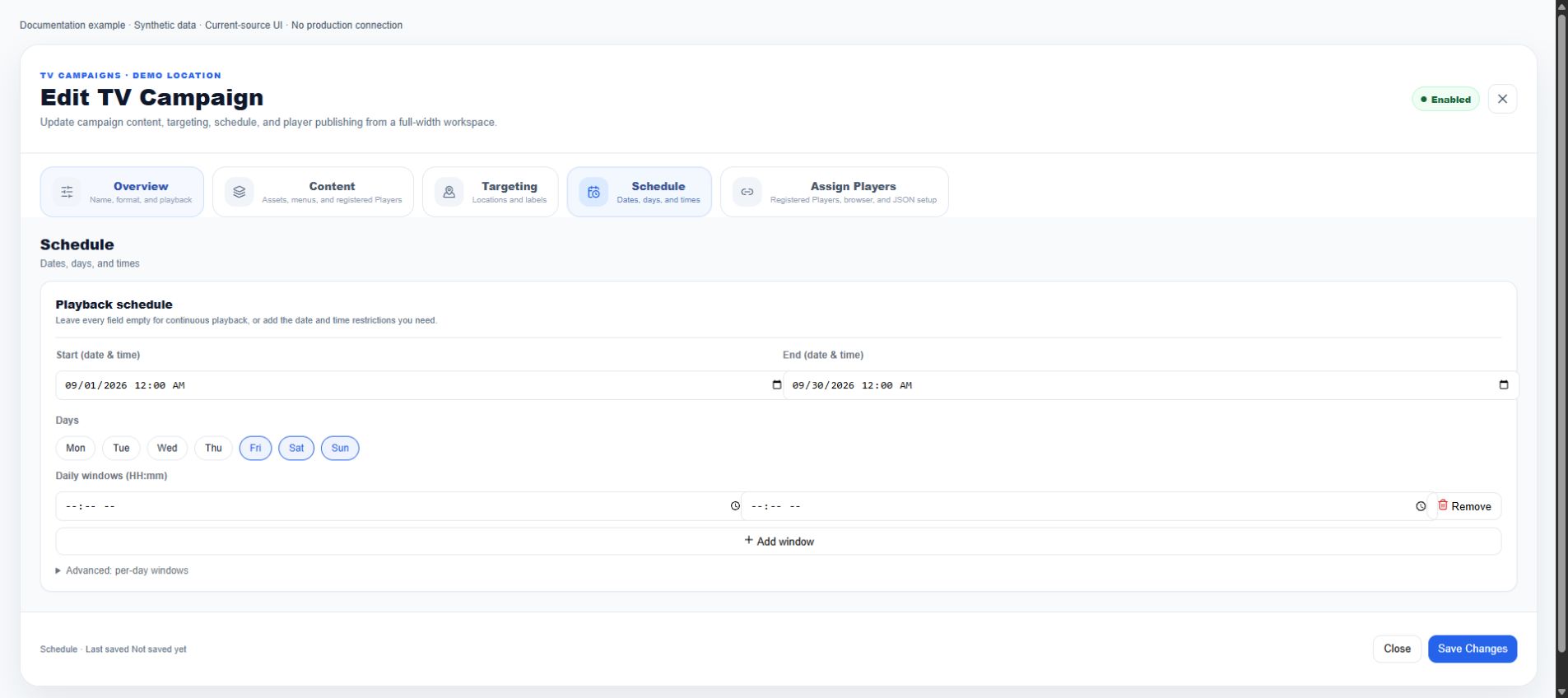
Both inputs are optional datetime-local fields, initially blank. The editor converts them using the browser's local Date constructor. The shared playback helper then compares calendar dates in the schedule time zone, not the saved hour/minute. Start and end dates are inclusive in that helper. Do not promise exact-hour activation from these two fields alone: use complete daily/per-day time windows. Save does not contain a reversed-date-range validation; check your entries and report unexpected boundaries to Support.
Days
Mon through Sun are toggles, initially none selected. No selected days means no weekday restriction, not never play. Selecting days limits playback to the current calendar weekday in the saved schedule time zone. A matching time window cannot override an excluded weekday. Save Changes applies the selection; incomplete unsaved edits do not change this rule.
Daily windows (HH:mm)
Add window creates empty Start/End time inputs. Complete both ends; incomplete daily rows are filtered out on save and are not playback restrictions. Multiple complete rows are OR alternatives: matching any row is enough. For a same-day row, the start and end minutes are inclusive. A start later than the end matches either the late-night or early-morning portion of the current day. Remove deletes that row from the staged schedule; Save Changes persists it.
Advanced: per-day windows
Expand Advanced: per-day windows to add separate rows for each weekday. A day's nonempty complete per-day rows replace the daily windows for that day, not intersect with them. If that day has no complete rows, playback falls back to daily windows (or the legacy simple time window). With neither fallback nor a day restriction, a day with no rows is unrestricted. Always select allowed Days explicitly when using only per-day rows.
Friday and Saturday nights, 9 PM until 1 AM
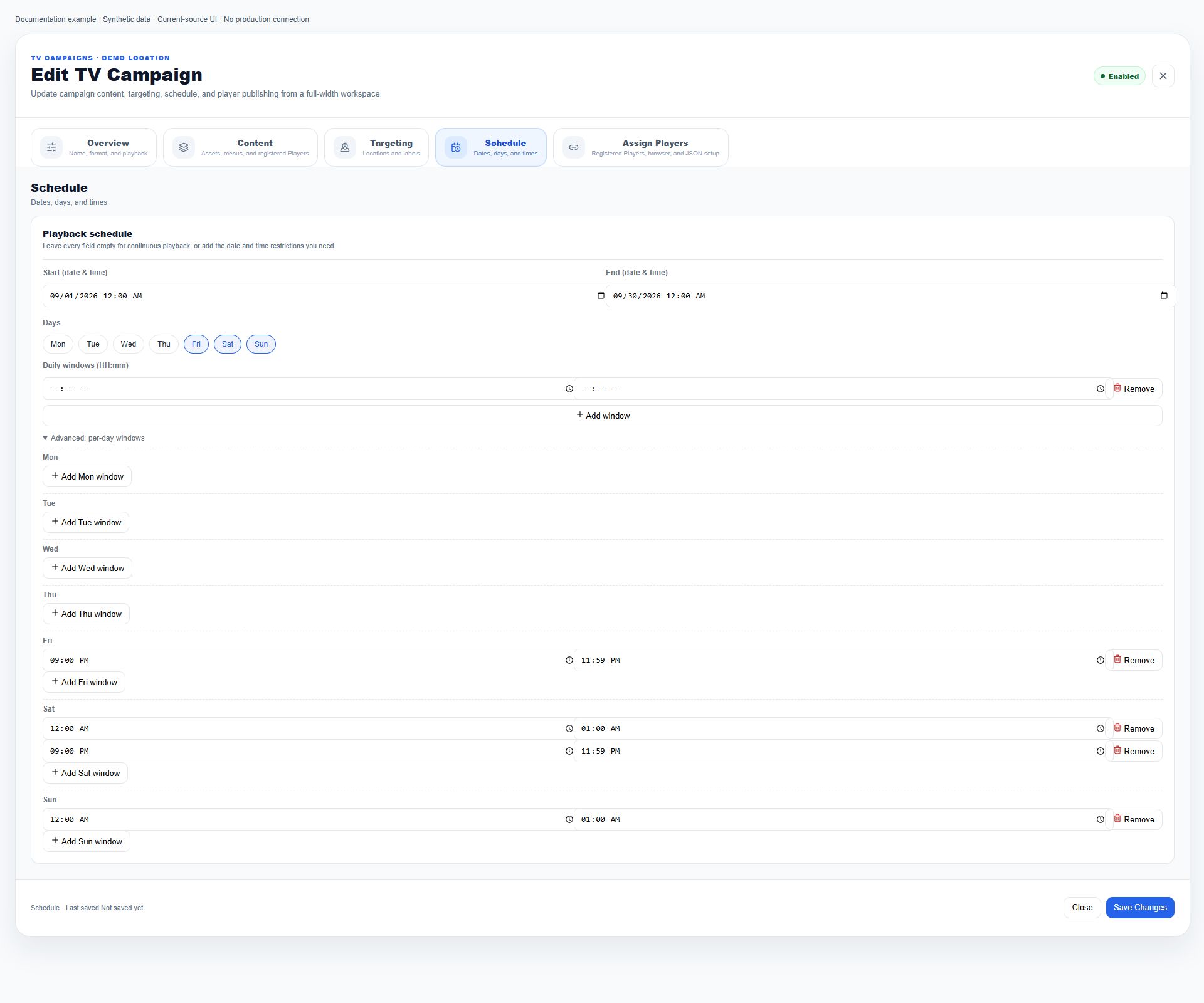
For Friday and Saturday service nights in the shared TV playback helper, select Fri, Sat, and Sun. Leave Daily windows empty. Set Fri 21:00–23:59; Sat 00:00–01:00 and 21:00–23:59; Sun 00:00–01:00 in Advanced: per-day windows. The weekday filter checks the current day, not the day on which a shift began. Simply selecting Fri/Sat with 21:00–01:00 also permits early Friday and excludes early Sunday. Date boundaries still apply; verify midnight behavior on the intended Player path. Do not generalize this recipe to every native Player runtime without verification.
Which time zone is used?
A new TV campaign initializes timezone from the editing browser's resolved IANA time zone, falling back to UTC. The inspected Schedule tab has no visible time-zone selector. Loading an existing campaign uses its saved scheduling.timezone or the browser zone. The shared playback helper prefers tz, then timezone, then America/New_York. Do not assume the venue's local time zone is automatically selected, or that different Players reinterpret the same schedule locally. Ask Support to verify a wrong saved zone instead of editing hidden data.
Active, scheduled, expired, unscheduled, and 24/7
The schedule badge helper is not the live eligibility check. It returns 24/7 first when is247 is true; otherwise it labels an end timestamp in the past expired, a future start scheduled, and an in-range restricted schedule active. It does not evaluate the current weekday or daily window for the active label. An unrestricted disabled record can be unscheduled. If the badge says active but nothing plays, inspect Enabled, actual windows, content eligibility, assignments, and Player health rather than repeatedly saving.
Permissions and scope
- The route requires Campaigns access. Exact read-only versus editor enforcement still needs a separate permission-path audit; this guide does not promise that a visible control grants write permission.
Mobile
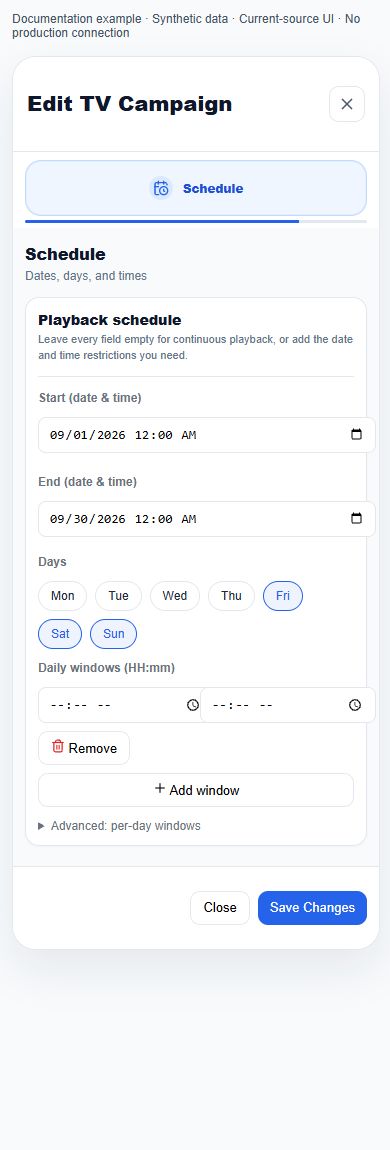
- A 390-pixel current-source fixture demonstrates stacked date inputs and wrapped weekday/time controls. It was reached by selecting Schedule on desktop and resizing: existing edit mode hides inactive tabs at 820 pixels or narrower and has no Back/Continue navigation. Use desktop to reach the editing sections. This fixture is not proof of a working mobile entry path or production native date/time picker behavior.
What happens next
Verify the saved result in the correct scope and delivery path. A preview or status badge is not proof that every production Player has refreshed.
Warnings
- This source-reviewed guide describes the named paths only. Operational coverage and production visual verification are still in progress.