Campaigns · Reference
Campaign assets: upload limits, compatibility, deletion, and playback duration
Distinguish upload warnings from blocked uploads, check orientation compatibility, and understand the campaign-reference cleanup performed when an asset is deleted.
What this does
Distinguish upload warnings from blocked uploads, check orientation compatibility, and understand the campaign-reference cleanup performed when an asset is deleted.
Before you start
- Use media you have permission to display.
- Before deletion, review every campaign using the asset; deletion is not an archive operation.
Steps
- Select image or video and choose supported media.
- Resolve Upload Too Large by trimming or recompressing; review Large Upload before continuing.
- Check the destination campaign orientation and Order Board placement requirements.
- Review the configured asset duration and the campaign loop estimate.
- Before deleting, remove or replace content in any campaign that must continue playing.
Current screenshot
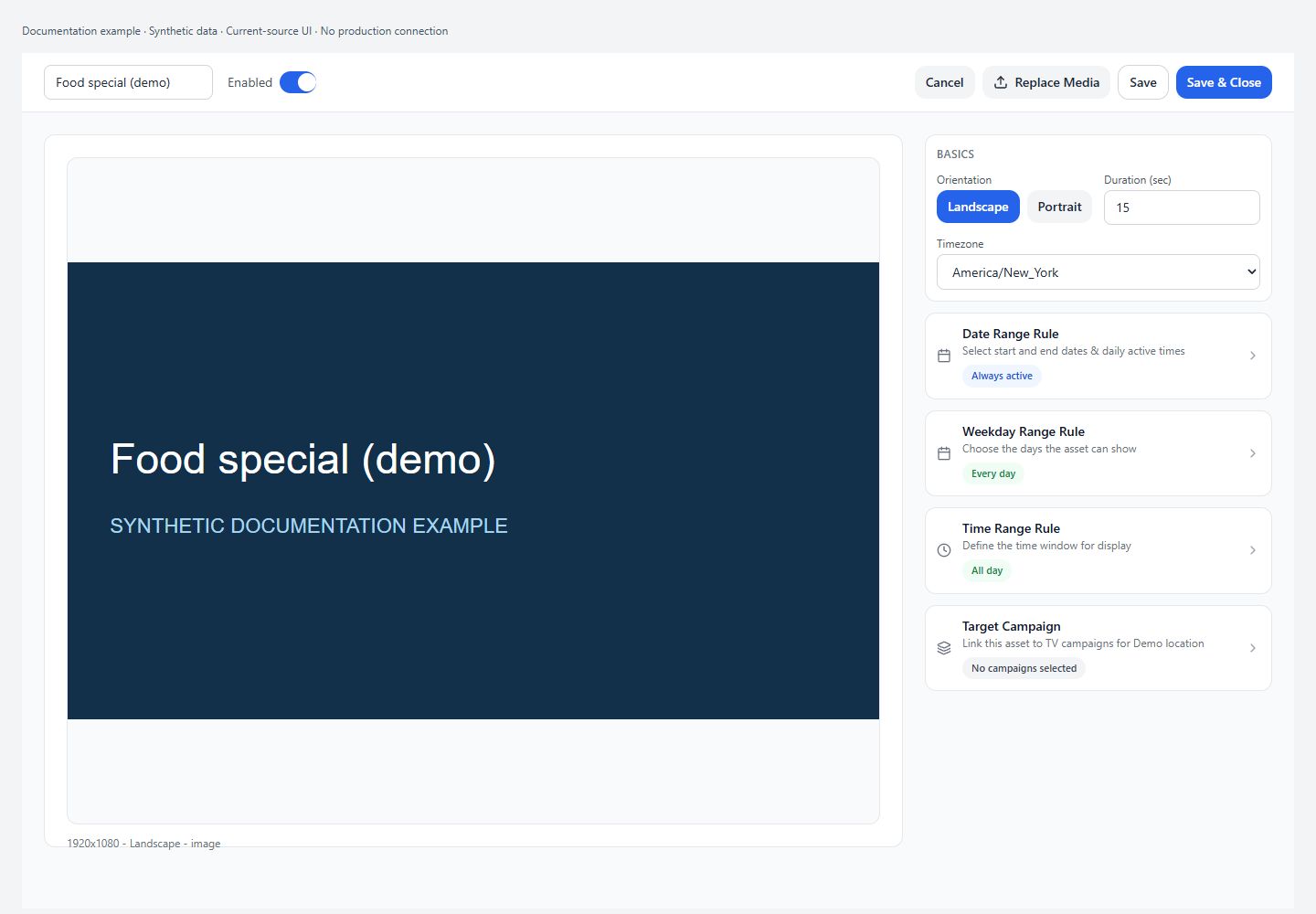
Asset rule Cancel closes the panel, not its staged changes
In the current Edit Asset page, Date Range Rule has optional Start Date and End Date plus Start Time and End Time for ordinary assets. Weekday Range Rule offers weekday toggles. Time Range Rule separately offers Display start and Display end. The rule-card Cancel and confirm handlers only close the expanded card; they do not restore the previous input values and do not save the asset. Review the resulting summary before using Save or Save & Close, which persists the asset schedule. Do not mistake rule-card Cancel for undo. Rockbot-managed assets hide the ordinary weekday/time cards and the daily time inputs. This documents the form and save fields only; exact Player eligibility and interaction of the two time ranges require separate runtime verification.
Asset name search and created-date sorting
Search trims whitespace and matches a case-insensitive substring of the asset name only; it does not search labels, campaign names, media descriptions, or file contents. The initial order is Created Date descending. In List view, clicking Created Date switches ascending/descending order. Schedule and Status filters intersect with the name search, and their counts reflect the other active filter. Scheduled includes scheduled and 24/7 records, not every active asset. Clear search and return both filters to All before concluding an asset is missing.
Inline duration saves immediately
The library duration pencil opens a seconds input with minimum 0.1 and step 0.1; this differs from the full asset editor's minimum 1. Enter or the checkmark saves immediately, rounding to one decimal place; Escape cancels the inline edit. The handler rejects nonfinite values and values at or below zero, with no upper bound. A failed update restores the previous displayed duration and leaves the input available to retry. Inherited read-only rows have no duration pencil. Library display falls back to 30 seconds for an invalid/missing duration; runtime fallback can differ, as explained in Duration.
Selection and bulk actions can include filtered-out assets
Selected asset row keys are cleared only when those rows disappear from the underlying asset map, not when search, Schedule, or Status filters hide them. Therefore changing a filter can leave selected assets outside the visible results. Inspect and clear selection before a bulk action; do not assume bulk actions affect only the currently visible rows. Inherited read-only checkboxes are disabled. Bulk Enable/Disable starts writes without a confirmation dialog. These actions are not search filters and can alter live playback eligibility.
A failed bulk action may have partly succeeded
Bulk status changes and deletions process rows sequentially, including audit logging between updates. A failure stops the remaining loop but does not roll back earlier writes. Bulk deletion asks for confirmation, unlinks regular assets from campaigns first, then deletes records; an error after unlinking can leave some records present but unassigned. Bulk update failed or Bulk delete failed therefore does not mean nothing changed. Reopen the library and inspect affected records and campaign references before retrying; preserve the selected scope and error message for Support.
Asset-side Assign adds eligible campaign links
The asset library Assign dialog lists campaigns permitted by asset scope, orientation, provider, and Order Board placement predicates. Already assigned entries are checked and disabled; this dialog cannot remove existing assignments. New selections start empty each time the dialog opens, and Assign is disabled until at least one new campaign is chosen. Cancel closes without assignment. Confirming Assign starts the assignment handler immediately, not an unsaved full-editor draft. The no-match message mentions orientation, but scope or placement can also exclude campaigns.
Image file types
The current Create Asset picker accepts PNG, JPEG/JPG, GIF, and WebP image MIME types. It reads the first selected file and rejects unrecognized MIME types with Unsupported file type. A file-extension label alone is not the acceptance test. It then checks detected dimensions against the enabled module's allowed sizes; an otherwise valid PNG may fail that size check. Export a supported image at one of the displayed allowed dimensions. Original-format acceptance is not a guarantee that every output device natively plays that original.
Video file types
The current Create Asset picker accepts MP4, QuickTime/MOV, and WebM video MIME types. It reads the first selected file; an unsupported reported MIME type produces Unsupported file type. Export a supported video if rejected, then check the displayed module-specific allowed dimensions. Codec, transcoding result, and native-device compatibility need their own verified checks; the extension list alone does not establish those behaviors.
Image: Large Upload and Upload Too Large
For images, more than 8 MiB triggers Large Upload confirmation; more than 20 MiB is blocked as Upload Too Large. Exactly 8 MiB is below the warning condition, and exactly 20 MiB remains a warning rather than a block. The UI labels these sizes MB, but the code uses 1024×1024 bytes. Trim or recompress an over-limit image. A warning allows review and continuation; it does not mean processing has completed.
Video: Large Upload and Upload Too Large
For videos, more than 50 MiB triggers Large Upload confirmation and more than 150 MiB is blocked. Exactly 150 MiB remains in the warning range. The size guardrail states that an optimized copy is created, but successful processing is a separate step. Trim or recompress an over-limit video and retry; do not interpret the warning as an upload failure or as a guarantee that a playable rendition exists.
Why an asset does not fit a campaign
Ordinary TV campaign compatibility matches the normalized asset and campaign orientations: horizontal/landscape or vertical/portrait. Order Board sidebar/bottom-sized assets are excluded from ordinary campaigns. For an Order Board campaign, the selected template and orientation determine the required placement dimensions. A compatible orientation alone is not sufficient for those placements. Choose a correctly sized asset for the destination instead of assuming every library asset is selectable.
Deleting an asset used by a live campaign
For non-Rockbot assets, Delete asks for confirmation, unlinks matching TV campaigns' assetIds, and then deletes the asset document. Bulk deletion also unlinks before deleting asset documents. Parent assets can affect parent and location campaigns; location assets are scoped to their location, with known parent references checked too. This is not an archive/restore action. Cleanup consists of multiple writes and can partially finish before an error; inspect dependent campaigns after a failure. The inspected path does not promise deletion of the underlying storage object or instant removal from already-loaded offline Players.
Asset duration and loop estimate
The campaign loop estimator adds each asset's duration in seconds, using 8 seconds when missing/non-numeric and a minimum of 1 second. TV playback also schedules ordinary asset advancement from the asset duration with an 8-second fallback and 1-second minimum. Changing per-asset timing changes the total loop; menus and enabled TikTok rotation contribute additional time. This unit establishes playback consumption and the estimate, not the complete duration-edit form contract or a maximum supported video length.
Changing Duration (sec)
Open the asset's current Create/Edit page and set Duration (sec) in Basics, then use the asset save action. The input has a minimum of 1 second and 0.1-second increments, with no declared maximum. Images initialize to 30 seconds; video metadata can initialize duration from the clip length. Save uses Number(duration) or 30, so blank or zero falls back to 30 rather than meaning unlimited. This active editor is different from the older MetaForm component's 5–600 range; do not use that unused form to describe current limits.
Video Auto Rewind
Auto Rewind is visible for video assets and starts off in Create Asset. Turn it on to loop the clip until the configured asset display duration expires; it does not extend that duration. With it off, the inspected Android campaign web playback holds the final frame if the clip ends early, then the configured asset timer advances. Save the asset after changing the toggle. Native Player-specific behavior still needs a separate audit.
Video Audio and volume
New video assets start muted with volume 100. Video Audio turns muting on or off, and the volume controls accept 0–100 in steps of 1. They are disabled while muted. Save clamps volume to 0–100, while non-video assets are saved muted with zero volume. Unmuting at zero volume remains silent; also check physical display/amplifier volume and browser autoplay restrictions before diagnosing an audio failure. This does not change the venue's external audio routing.
Permissions and scope
- Campaigns access and authorization for the asset's stored group/location are required. Parent asset deletion can touch campaign references across locations and may require broader authorization.
Mobile
- File picker support depends on the device/browser. Drag-and-drop and mobile upload presentation have not yet been production-verified.
What happens next
Verify the saved result in the correct scope and delivery path. A preview or status badge is not proof that every production Player has refreshed.
Warnings
- This source-reviewed guide describes the named paths only. Operational coverage and production visual verification are still in progress.