BevQ · Reference
BevQ TV menus: items per screen, pagination, rotation, and saving
TV menus divide selected items into screens. Items Per Screen and section breaks determine pagination; Grid Columns controls arrangement, and Rotate Every controls public playback timing.
What this does
TV menus divide selected items into screens. Items Per Screen and section breaks determine pagination; Grid Columns controls arrangement, and Rotate Every controls public playback timing.
Before you start
- Select a specific location: this TV-menu collection requires both group and location.
- Prepare the menu sections and items before configuring the TV layout.
Steps
- Open TV Menus at the intended location and select an existing menu.
- Choose sections, orientation, Items Per Screen, and Grid Columns.
- Choose whether each section starts on a new screen.
- Set Rotate slides and Rotate Every, then use Prev/Next to inspect every editor-preview screen.
- Save Changes. Check the actual public or campaign playback separately from the editor preview.
Current screenshot
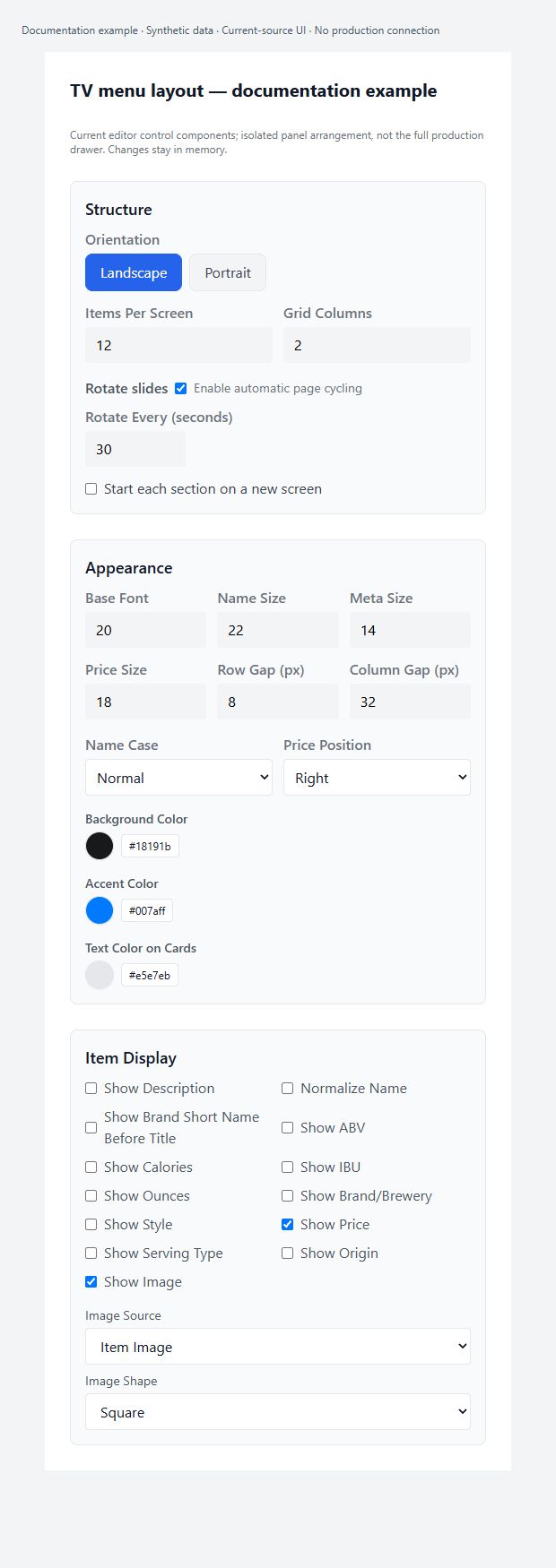
TV menu font, spacing and color controls
Appearance exposes Base Font (default 20, input range 12–32), Name Size (22, 14–48), Meta Size (14, 10–28), Price Size (18, 12–36), Row Gap (8, 0–48) and Column Gap (32, 0–64). Name Case offers Normal, UPPERCASE and Title Case; Price Position offers Right, Inline with title and Below. Background, accent and card-text colors are separate. These are current editor inputs and defaults, not evidence that every value is clamped on save or that oversized text will fit; inspect the actual paginated preview after changes.
Showing item metadata and images on TV
Item Display has toggles for Description, Normalize Name, Brand Short Name Before Title, ABV, Calories, IBU, Ounces, Brand/Brewery, Style, Price, Serving Type, Origin and Image. When unset, Price is on and the other toggles are off in this control component. Enabling Image reveals Item Image versus Brand Image and Square versus Circle shape. These controls decide presentation; they do not create missing ABV, IBU, brewery, price or image data. Save Changes on the drawer persists the staged settings.
Location scope and menu ownership
The TV Menus page loads a collection beneath the selected group and location and sorts menus by name. Without both group and location it cannot load or create menus. Its TV-menu records are location-specific; this page does not implement a parent menu inherited-and-overridden hierarchy. Do not confuse parent campaign targeting with TV-menu ownership. Parent/location behavior in other BevQ menu surfaces still needs a separate audit.
New, Copy, and Delete are immediate actions
New TV Menu immediately writes an Untitled TV Menu and public mirror, then opens it; it is not merely an unsaved form. Copy immediately creates a new ID, adds (Copy) to the name, and writes a public mirror. Delete immediately removes the menu document and public mirror; the inspected handler has no confirmation or dependency-cleanup step. Do not use New, Copy, or Delete merely to explore the production UI. Confirm campaign/display dependencies before deleting and ask Support if you need recovery.
Items Per Screen
Items Per Screen defaults to 12 and the input declares 4–30. It determines how many ordered items are sliced onto each page, not how many items exist in the menu. Thirteen items at 12 per screen produce two screens. Reducing the value can create additional pages even when the item list is unchanged. The renderer uses the number directly and the save sanitizer does not clamp this range, so the HTML limits are not a server-enforced guarantee. Keep the value in the displayed range and inspect every page.
Grid Columns
Grid Columns declares a 1–3 input range. Without a stored value it displays 1 for portrait and 2 for landscape. It controls arrangement within a screen, whereas Items Per Screen controls page slicing. Changing columns does not itself set the page item limit. The preview derives row count by rounding Items Per Screen divided by columns upward. These are UI bounds; the inspected save sanitizer does not enforce a numeric clamp.
Start each section on a new screen
This checkbox is initially off when unset. Off combines ordered items before slicing into pages. On slices each section separately so a new section cannot fill spare space on the previous section's last page. For example, two sections of 7 items at 12 per screen require 2 screens either way, but with the option on each screen contains just its own 7-item section; two sections of 5 items become 2 screens instead of 1. Empty content still has one empty screen.
Rotate slides
Rotate slides defaults on unless explicitly false. Public standalone playback cycles pages only when more than one page exists and rotation is enabled. The editor preview supplies external page control, so it does not auto-cycle: use Prev/Next. In a campaign embed, rotation also waits until that menu is activated by its parent and advances to the last page rather than wrapping. Do not diagnose a stopped editor preview as a production rotation failure.
Rotate Every (seconds)
Rotate Every defaults to 30 seconds; the input declares 5–180 seconds. Public standalone rotation uses the configured interval between pages. Campaign readiness reports at least 5 seconds to its parent. The inspected save sanitizer does not clamp the numeric input range, so stay within the displayed limits. This is page duration, not a lunch/dinner start time or the interval between entire campaigns.
Permissions and scope
- The page is a location-scoped BevQ management surface. Exact editor permission and POS gating must be audited in the shared management wrapper before claiming complete access coverage.
Mobile
- The inspected editor drawer is fixed at 520 px and the page reserves 520 px while open. Narrow-screen usability is an unresolved finding, not verified responsive parity.
What happens next
Verify the saved result in the correct scope and delivery path. A preview or status badge is not proof that every production Player has refreshed.
Warnings
- This source-reviewed guide describes the named paths only. Operational coverage and production visual verification are still in progress.